
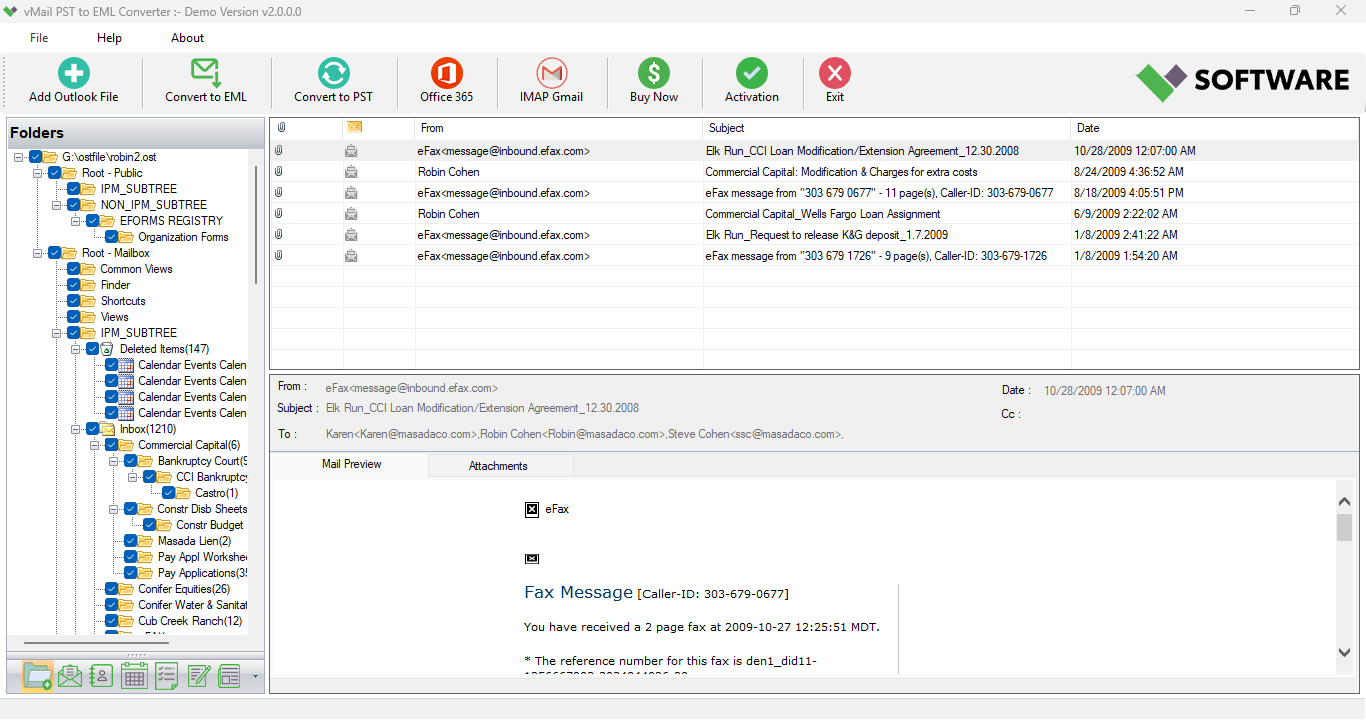
Email data transfer may also be required from one platform or application to another. Outlook saves its emails in PST format, whereas other email programs or platforms utilize the EML file format for storing each of the emails. When there is a requirement to transfer the emails from Outlook to an EML format-supported program, it is not always possible to transfer directly from the PST data. In such cases, a good vMail PST to EML Converter can come in handy.
It helps the user to convert their emails in PST format into EML format. Rather than doing it manually for each of the emails, the user can do this task for many emails simultaneously. This makes PST to EML conversion a great option for both personal users and businesses.
Why Convert PST to EML?
PST file format is used in Microsoft Outlook and may include emails, attachments, contacts, calendars, tasks, notes, and other data from the mailbox. On the other hand, EML format is used to store separate emails and is supported by various email programs.
In the case of the need for the transferring of particular Outlook emails to another email program, archiving of separate emails, or sending email messages to other clients without using Outlook, EML format may be considered.
It turns out to be especially valuable in the situation when there are hundreds or thousands of emails within the PST file. The process of exporting each of the emails separately may take a long time.
Export Outlook Emails in EML Format
Among the most important reasons why one would want to use a PST converter is to convert Outlook to EML and have critical information regarding emails readily available. The user has the opportunity to open the PST file on the converter and review the mailbox information before the conversion process begins.
The process may end up preserving critical email information, including information about the sender and recipient, subject, date, CC, BCC, content of the email, links, and attachments. Having all that information available makes the EML file more useful.
This is even more helpful to businesses in situations where the email archives include invoices, reports, contracts, customer communication, documentation, and other information.
Preview PST Data Before Export
Working with a bulky PST file, the contents of which are unknown to you, will become complicated. The preview function allows users to analyze the contents of the mailbox prior to the start of the exporting process.
After the PST file is opened, users have the possibility to see the list of the available folders and messages. It allows users to see what information is stored in their mailbox and choose the data that needs to be exported.
This feature will be helpful in case the PST file includes numerous emails and some particular messages need to be extracted from the mailbox.
Selective Email Export
It is not always necessary to export all the data at one time from the PST file. In some cases, there are some specific requirements that may call for selective exporting of certain folders or emails. Selective export allows users to export only the required data from the mailbox rather than processing all the data.
For instance, a user can be interested in exporting only the Inbox or Sent Items and leave other older folders in archive. Similarly, companies can export emails associated with specific projects or customers.
Preserve Email Attachments and Properties
Email attachments are as significant as the emails themselves. Correspondence in business emails may comprise of spreadsheets, presentations, pictures, invoices, PDFs, and other kinds of files.
While converting PST to EML format, retaining such attachments is thus an essential aspect. A good converter is supposed to keep intact the connection between the email and its attachments.
Other attributes of the email, which may be preserved during conversion, include sender, recipient, subject, date, CC, BCC, links, and formatting.
Handle Large PST Files
An archive of Outlook can turn out to be bulky after some time. A single PST file can have years of correspondence and thousands of attachments along with several folders in it. It becomes quite tough and cumbersome to work on such files manually.
An Outlook converter tool helps in making the task easy by scanning the PST file and displaying the mailbox data that is contained in it. After that, it becomes quite easy for the user to choose the necessary data and save it in the EML format.
How to Convert PST to EML
The conversion procedure is relatively simple. Firstly, run the PST file conversion tool. Import the necessary PST file and let the software analyze the mailbox information.
Once done, you can proceed to select the folders and emails that you wish to convert. Once you have chosen the right email messages from your mailbox to convert, choose EML format as the output format. Select the destination folder where the files will be saved once converted.
As soon as the conversion is completed, the exported EML files can be accessed individually and used in EML-compatible applications.
Such an automated way of converting PST to EML files is much easier than converting each Outlook email manually.
Secure and Organized Email Export
While migrating emails, one needs to take into account not only conversion but also the integrity of the information that is considered valuable.
When users migrate from PST to EML, they usually expect that the converted file will contain all the original content of their emails, along with other information related to the email.
The use of specific software for such migration can facilitate the process. Functions such as preview, selection of emails to be migrated, preservation of attachments, and processing of big PST files are very helpful.
If users want to archive their emails or move them to another software, then EML files can be used for handling individual emails.
Conclusion
The use of a professional vMail PST to EML converter tool becomes a viable option for all those who want to convert Outlook email data into an EML file. They can scan PST files, preview mailbox contents, choose necessary folders, keep attachments and properties of emails, and export data in a convenient way.
Conversion from PST to EML, Outlook to EML, and PST to EML becomes an effective solution in case of various email migrations and archival needs. The selective export function, together with the capability of working with large PST files, makes the whole procedure more manageable.

Comments